
PathQuest PathQuestLastUpdated
PathQuest is a customization of SiteKey that handles running a task-based game for Braselton, GA.
Overview
Quick Staff Flow
- Check the guest in or create their registration with user lookup.
- Confirm the correct email and any starting achievements.
- Load the guest at the green screen through PreScan, take the photo, and give them a lanyard with sleeve.
- To start the game, assign tasks and release the first task on the staff dashboard.
- During the game, review submitted tasks and award bonus points when needed with user lookup.
- At the end, complete returning guests and export final rankings if needed.
What To Confirm First
- The guest can access the email address they provide.
- They will use one device for the whole game.
- Their team name is searchable in the system.
Most Common Staff Misses
- Misspelled email addresses during registration.
- Forgetting to assign and release tasks after the game begins.
- Late arrivals not getting the first task released.
During Registration
Start here before sending anyone to the green screen. During registration, confirm that the team exists in the system, that the email is correct, and that any starting achievements are awarded before the guest moves on.
For Pre-Registered Guests
- Ask whether the team pre-registered.
- Go to User Lookup and search for the team name.
- If you find the team, click Check In.
- Confirm the guest details, especially the email address.
- Check any achievements they should receive at check-in.
- Click Check In to save.
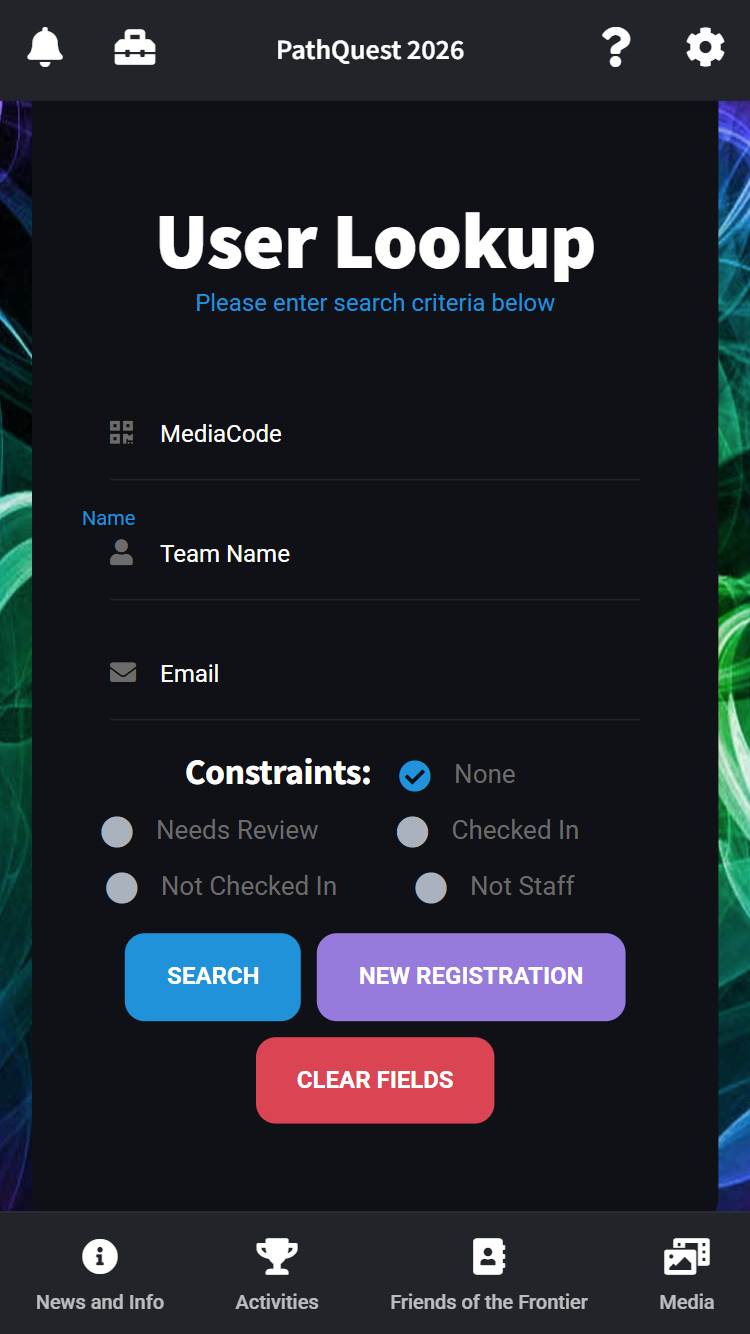
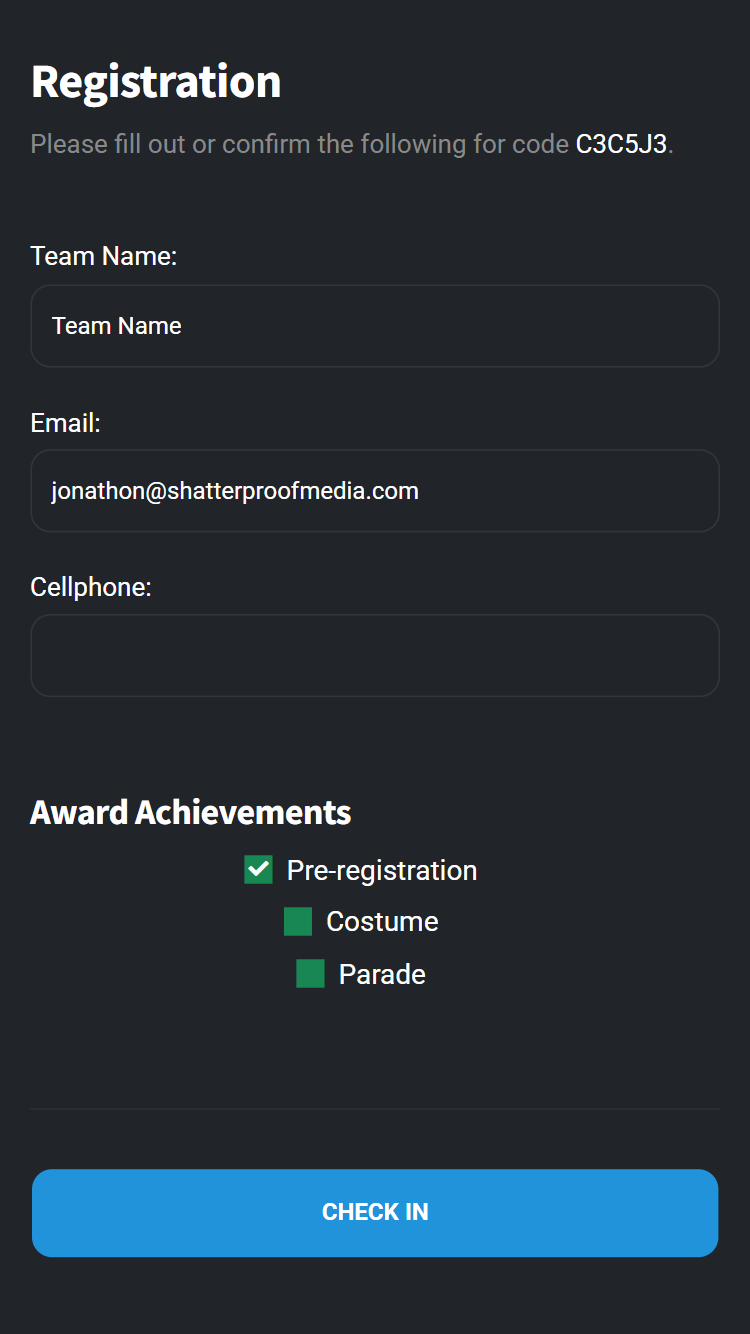
If someone only needs an info change, you can use the option that skips the welcome email. Sending another welcome email usually does not cause problems, so accuracy matters more than avoiding a resend.
For Walk-Ups Or Missing Registrations
- Braselton Staff will want people to sign a waver and to confirm that they have an acceptable user name
- If the search does not find them, click New Registration.
- Enter the team name and email address carefully.
- Check the correct achievements before saving.
- Click Register.
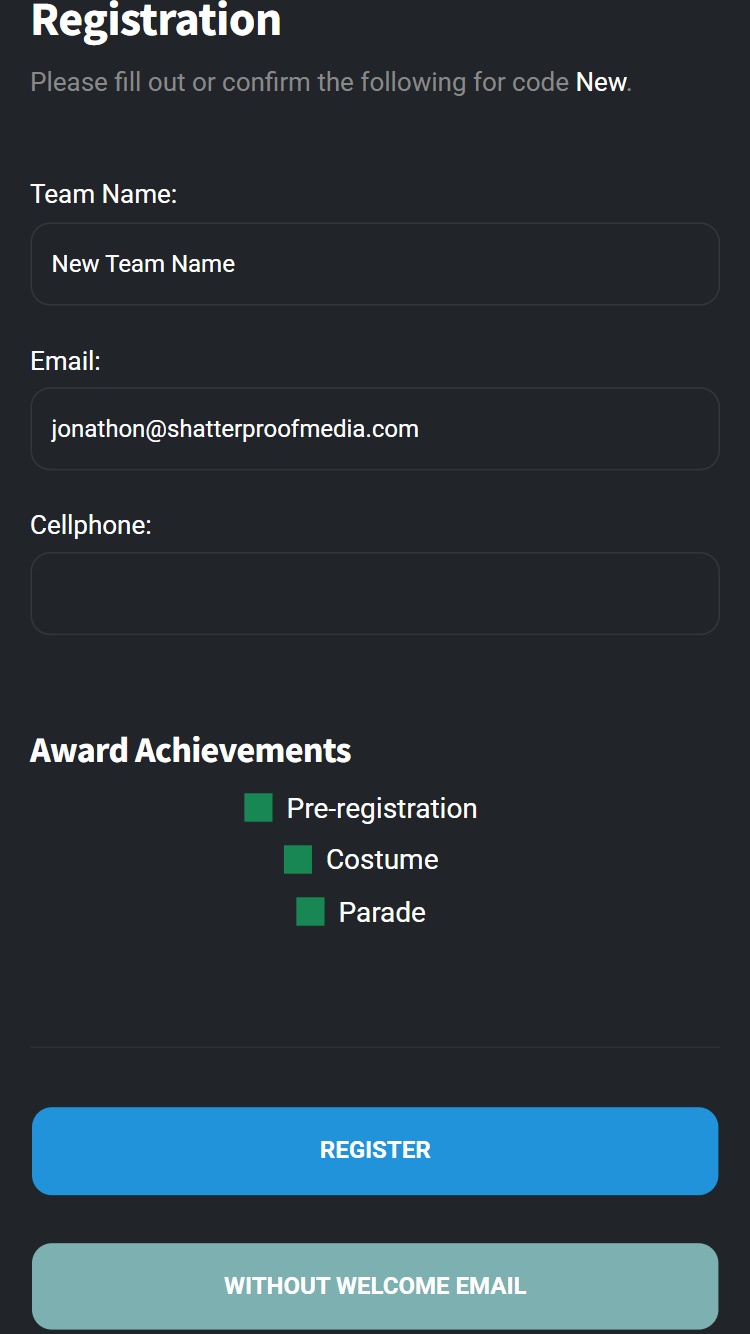
Have the guest verify the email with you before moving on. This is the only way they can log in to the app.
After check-in or registration, guests should get a login email or can scan the QR that shows up on screen. Then send them to the green screen station for their ID.
At The Green Screen
Use the green screen station to pull in the guest record, capture the photo, and make sure the guest leaves with their ID.
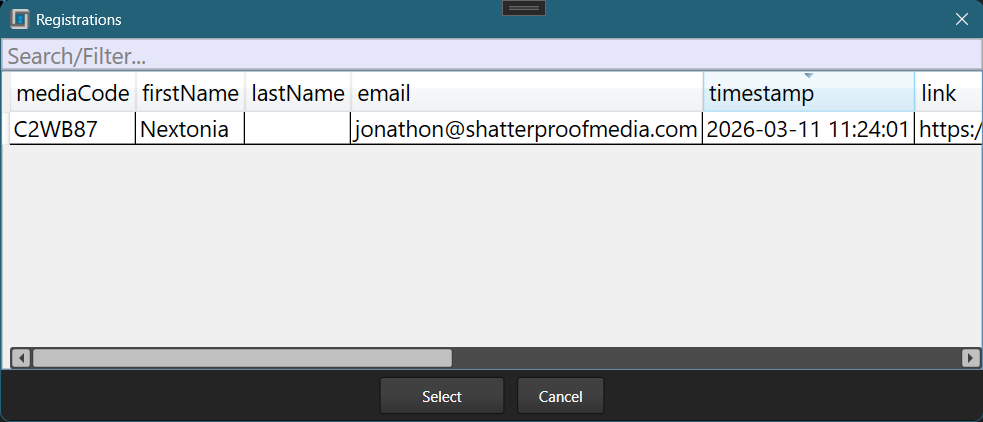
- Click the search button next to PreScan.
- Ask the guest for their team name or email address.
- Use the search bar to find their record.
- Double-click the result, or highlight it and click Select or press Alt, to load their data.
- Take the photo and save it.
- One print should come out automatically.
- Before they leave, make sure they have a lanyard with sleeve.

What Guests Need To Know
Guests will have fewer problems if staff gives them the short version before they walk away from registration.
Guest Script
- Use one device for the whole game.
- That device must be able to open the registration email.
- After registration, look for the login link in that email and sign in on the same device.
- Once the game starts, open Activities to see tasks and achievements.
Starting The Game
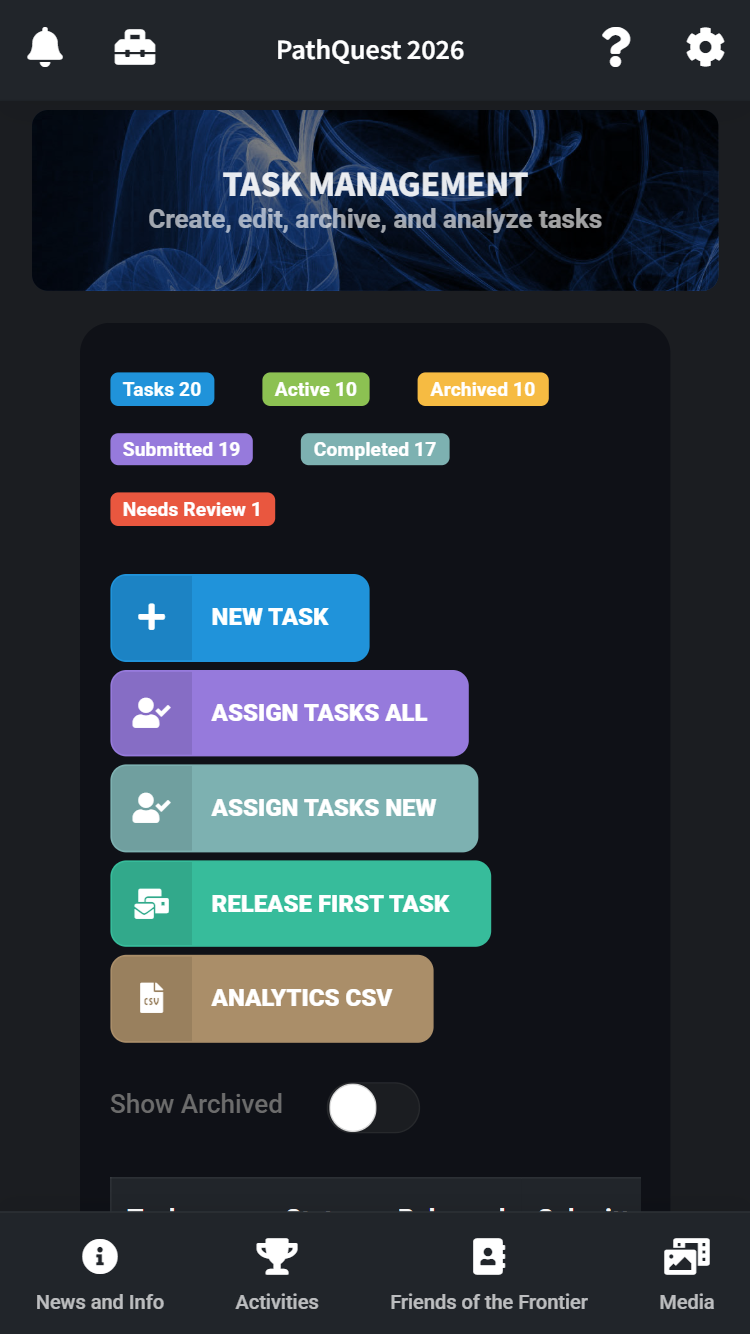
- Go to Task Management on the staff dashboard.
- Click Assign Tasks All. NOTE: This resets the tasks. Don't do this again after play has started.
- Click Release First Task..
If a guest registers or checks in after the game has already started:
- Return to Task Management.
- Click Assign Tasks New.
- Click Release First Task again.
Guests may also need to tap the refresh button on their task page before the new task appears.
During The Game: Review and Scoring
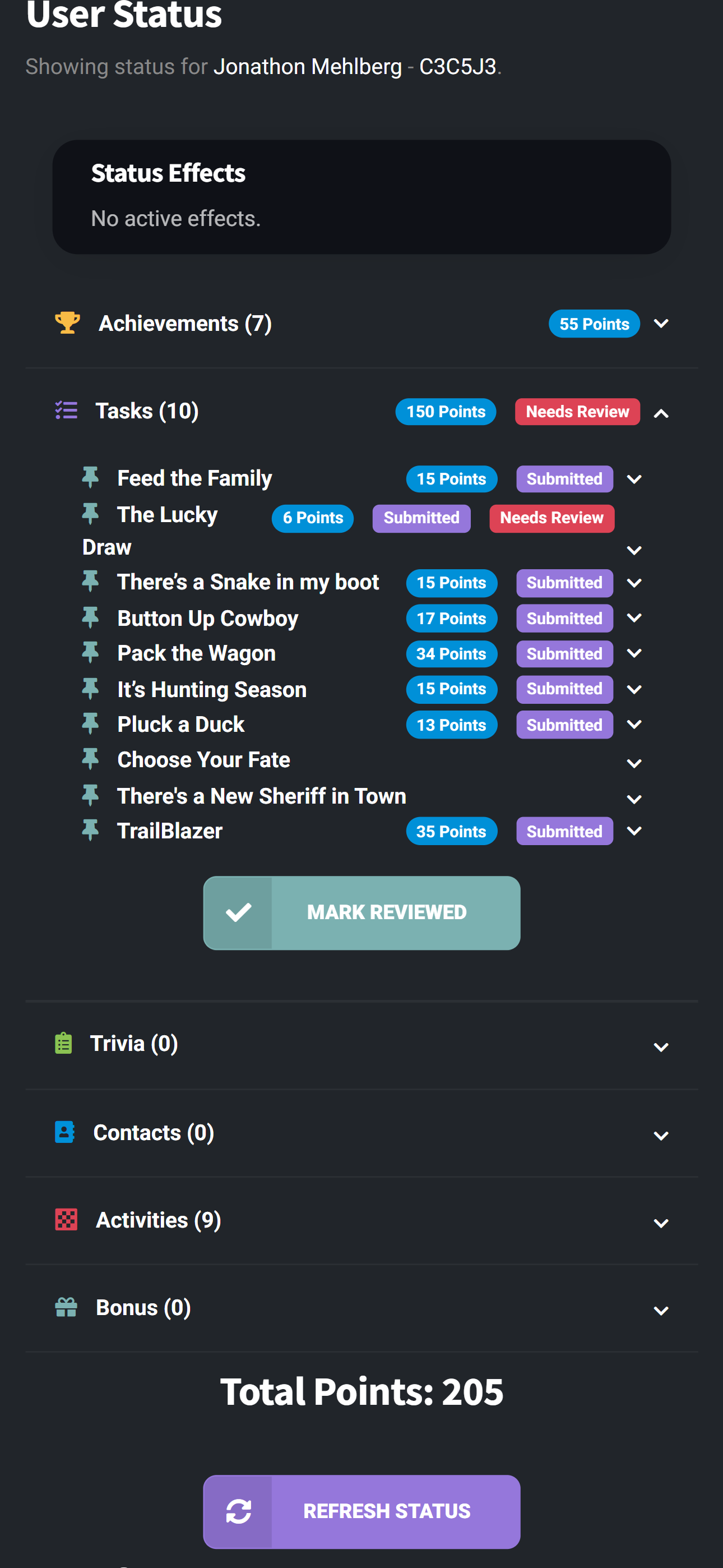
Use User Lookup to review necessary task submissions.
- Go to User Lookup.
- Check the Needs Review constraint.
- Leave the search fields blank.
- Click Search.
- Open a guest by clicking Status.
- Review the submitted tasks.
- Click Mark Reviewed when finished.
Review Standard
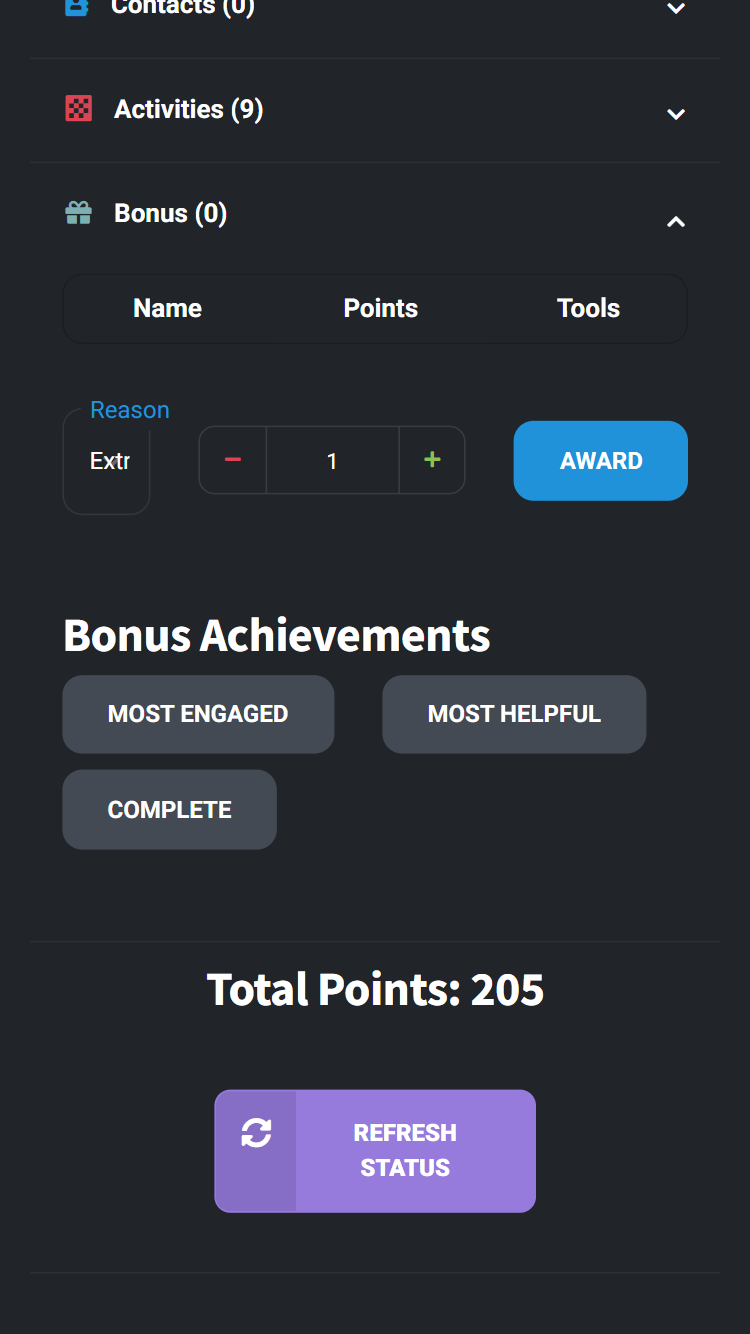
Be lenient and assume the best unless something is clearly wrong. In the bonus section, you can award points for special cases.
End Of Game
Use this closeout flow once guests return and you are ready to finalize results.
Closing Out Returning Guests
- When guests return at the end, look them up in User Lookup.
- Go ahead and submit and review all of their remaining tasks.
- In the bonus section, click the Complete button.
Getting Final Scores
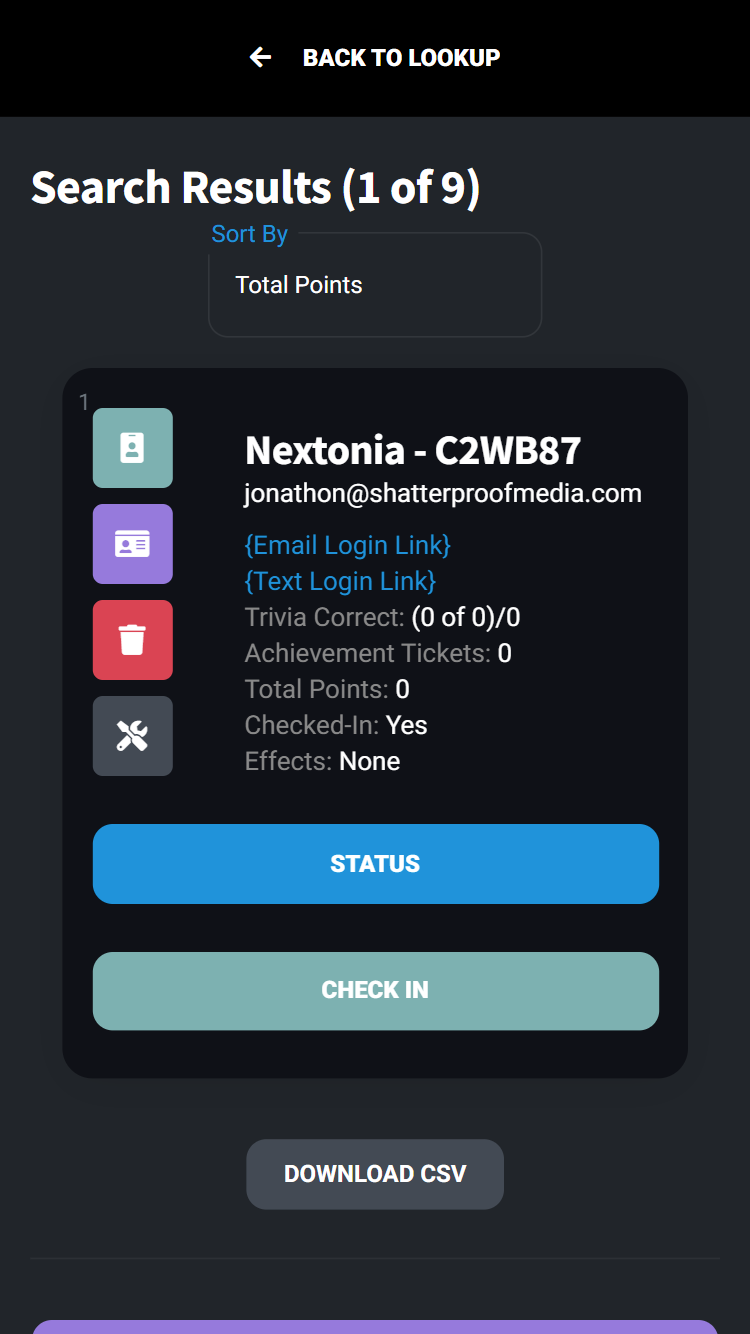
- Go to User Lookup.
- Choose the Not Staff constraint.
- Leave the search terms blank and click Search.
- Sort by Total Points.
- Players will now be properly ranked.
- If needed, click the button at the bottom to export a CSV.
That is the full closeout process.
Troubleshooting
Guest Cannot Log In
- Re-check the email address on their registration.
- Make sure they are using the same device that can access that email.
- If needed, click the tools button on the user in User Lookup. There you can issue a new login token and then show a login QR for them to can. In the search result, you can also send a new email link.
No Tasks Are Showing
- Confirm the game has been started with Assign Tasks All and Release First Task.
- For late arrivals, run Assign Tasks New and Release First Task.
- Have the guest refresh their task page.
Guest Not Found At Green Screen
- Search by both team name and email.
- Confirm registration or check-in was completed first.
- If they still do not exist, try looking them up in the app to see what's up.