Initial View
When you fist visit the site, this is what you see.
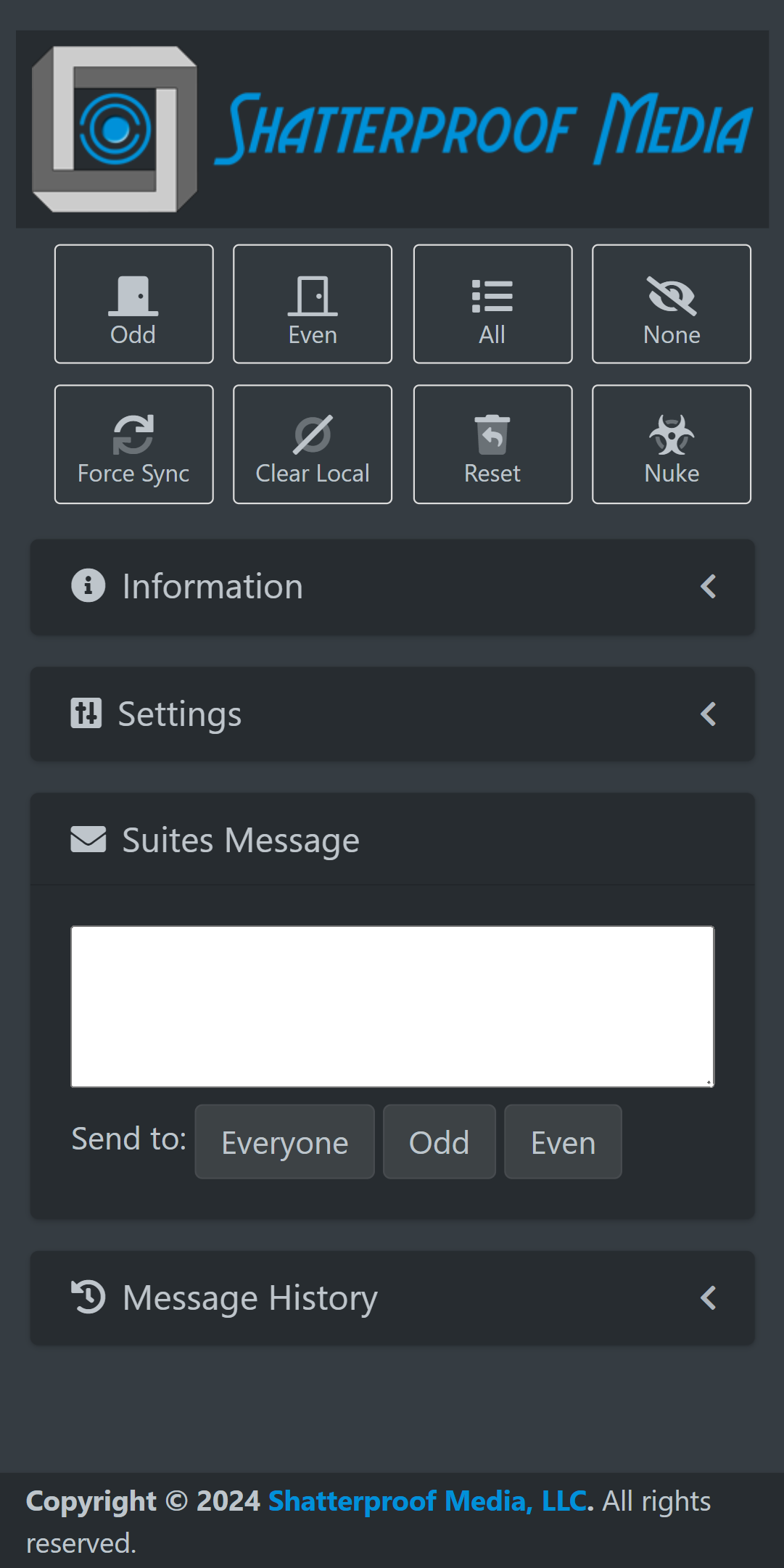
Initial Elements:
- Odd, Even, All, and None Buttons - These choose what list of suites to display.
- Force Sync Button - Forces all the notes, messages, and checks to sync with the server. This is most helpful if the automatic syncing doesn't seem to be working.
- Clear Local Button - This clears the data stored on your device. This is usually good to do before starting a new event followed by refreshing the page.
- Other Buttons - These are user for admin. See below admin section.
- Information Panel - Displays various informational links such as manuals or tutorials.
- Settings Panel - Displays various custom settings for how the app works. It's mostly under construction.
- Suites Message - This allows you to send a message to everyone else using the app, or the even/odd subset.
- Message History - Stores a complete history of sent messages.
Suite List
When you begin the event, you click which suite list you'll be using and see something like this:
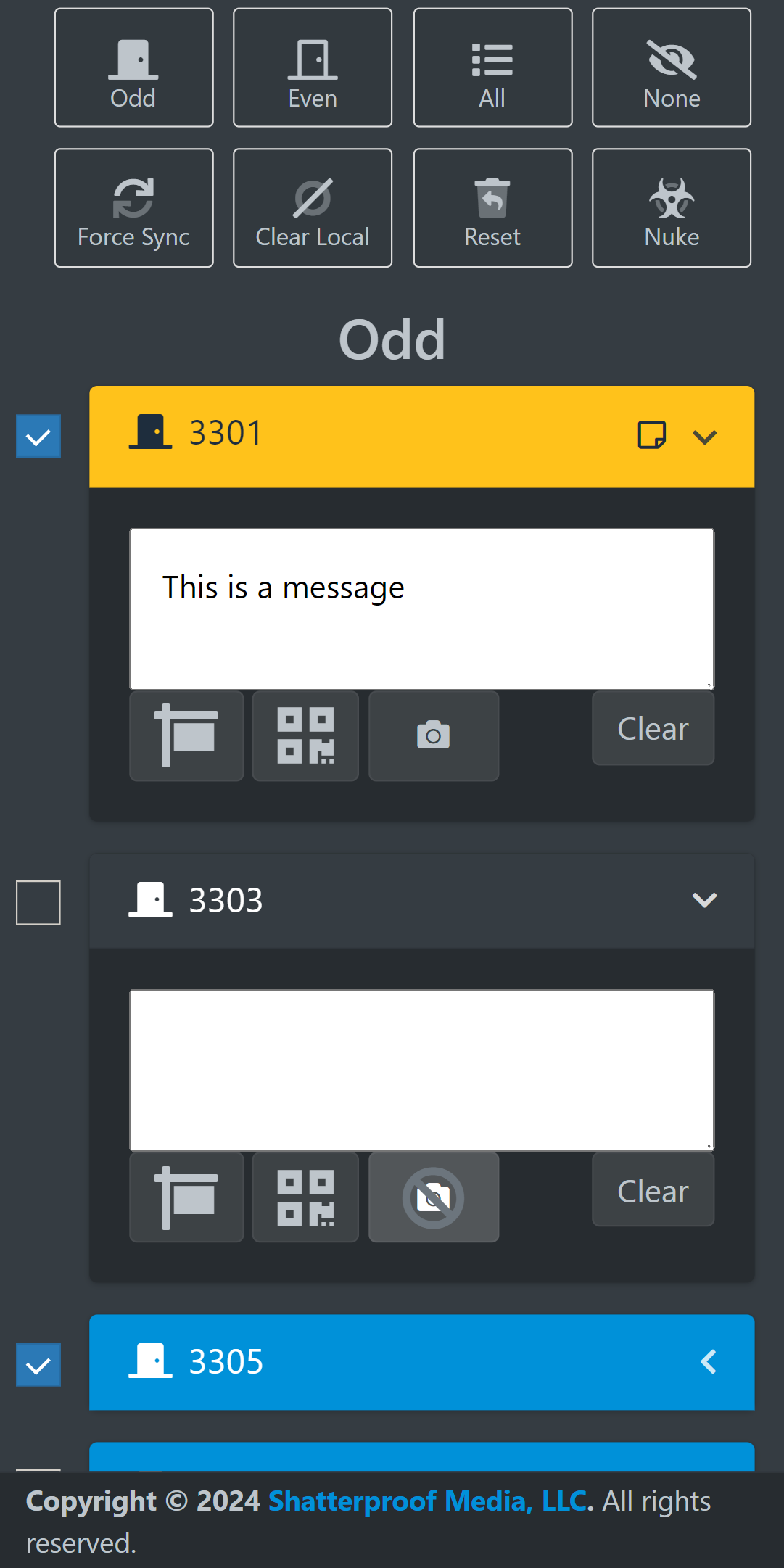
Suite List Elements:
- Suite Panels - Each suite panel can be tapped to open or close it. If the bar is yellow and the sticky note icon appears on the right side, that means the suite has a note.
- Suite Notes - Inside the suite panels, anything you type in the box is automatically added to the notes that everyone can see.
- Signpost - Inside the suite panels, the signpost button will display the suite number large on screen. This is useful in case you need to photograph the number away from the suite. If someone catches you in the hallway, for example.
- QR Code - Inside the suite panels, the QR code button will display a retrieval QR code on screen. A guest could then scan this to see all the photos from their suite. Make sure you respect privacy.
- Camera - Inside the suite panels, the camera button will toggle whether or not the suite wanted photos or was empty. When a suite is marked this way, it's top bar turns gray and the button icon changes.
- Checkbox - Every suite has a checkbox next to it that you can use to mark that the suite has been visited.
During the course of the event, notes may appear from other photographers or you may receive messages. Please make sure you're checking the app frequently. On Android phones, messages will send you a native notification, but this doesn't work on iPhones.
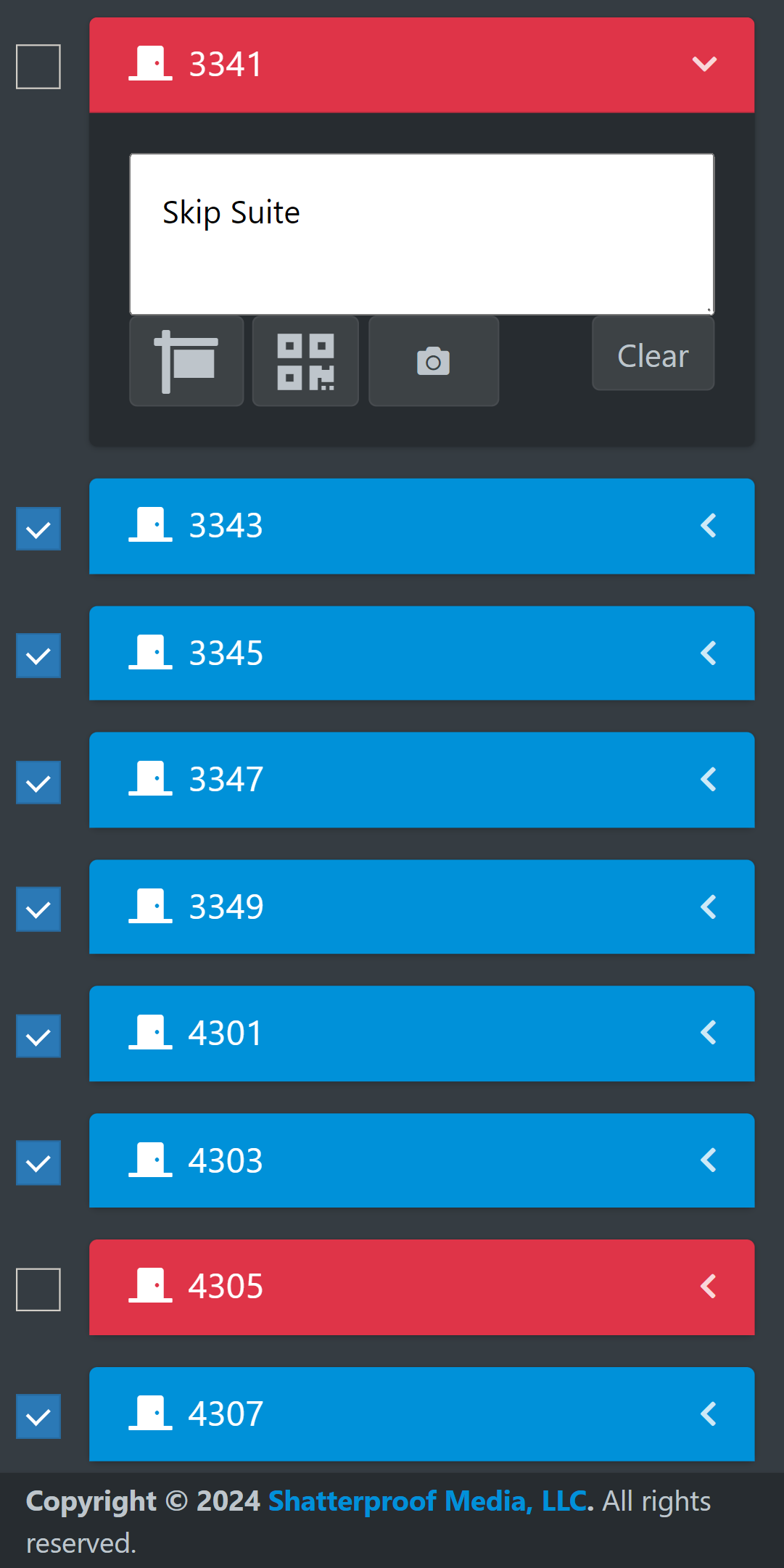
Suites to Skip
If a suite panel is highlighted in red, it should be skipped. Please don't disturb that suite in any way.
Wrap Up
This app is quite new and still under active development. Please provide us with any feedback, good or bad, because we want this to be a useful tool for everyone. Also, because it is so new, please make sure to mention any important notes to the printer when you drop off your memory card, just in case.
I'm thinking about adding a feature where messages will automatically text your preferred phone number when they arrive. Would this be useful/helpful, or is it unnecessary?
Initial View
Admin mode first requires that you're logged into PortalKey as Operations or higher prior to visiting the app.
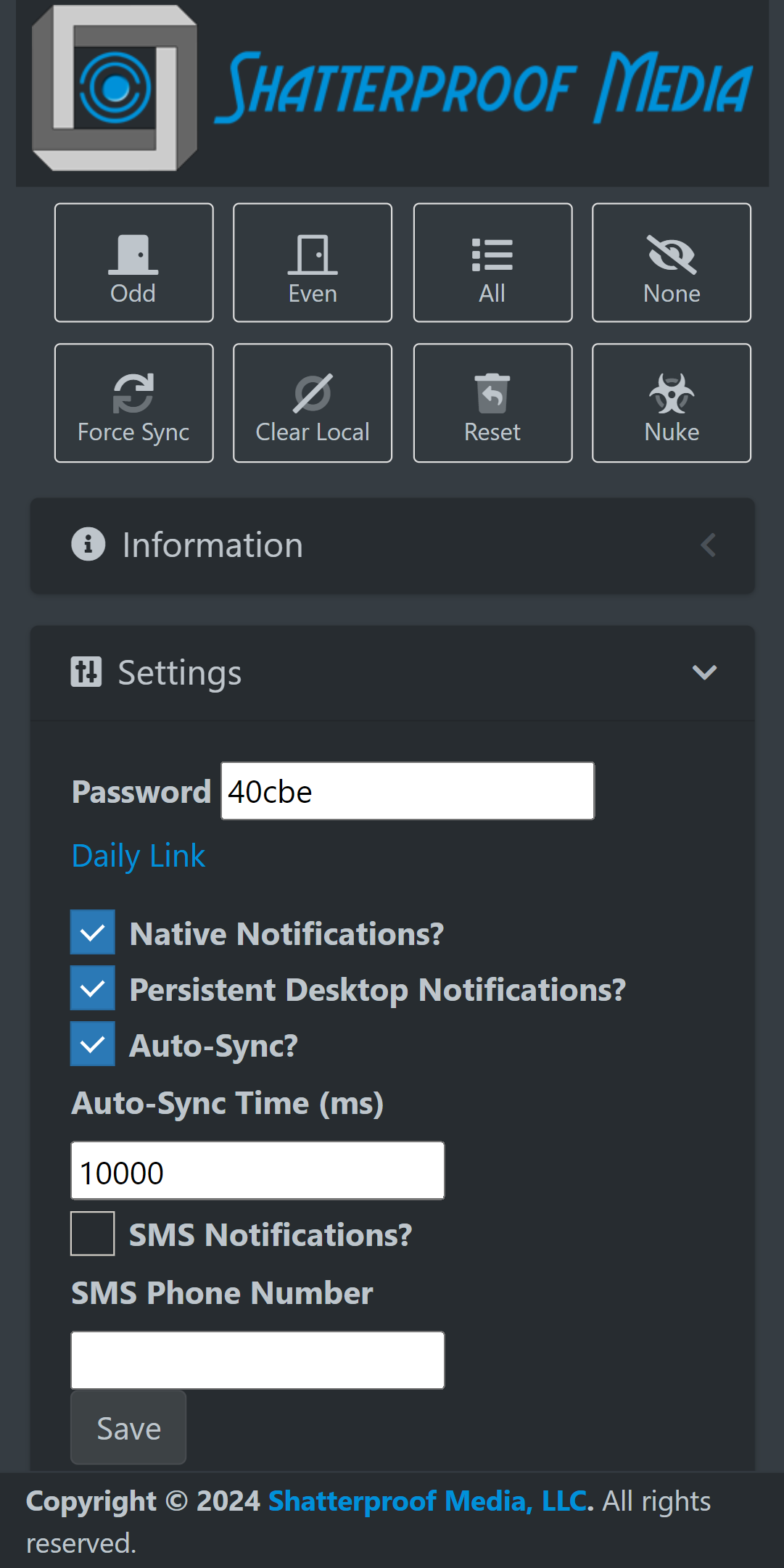
Additional Elements:
- Reset Button - This clears all notes, messages, and checks. It also sets a new password. Should always be done prior to starting each new event day.
- Nuke Button - This assigns new MediaCodes to all suites and resets as above. Should only be done at the start of each season.
- Password in Settings - Every time the reset button is clicked, the system assigns a new password for access to the app. This field displays that password if logged in to PortalKey. Otherwise, the password can be manually entered here.
- Daily Link in Settings - This is a sharable link that can be given to the photographers to access the app without needing to enter a password.
As long as you are logged into PortalKey, visiting the app will update it's url to include the current password, so that can also be directly shared.